Nothing is more annoying than working in the zone and getting interrupted. When it turns out Windows Update is pestering you to reboot, a double homicide is imminent.
Microsoft likes to “help out” by installing patches in the middle of the night. That is a good thing. But whatever goodwill they earn with this convenience is immediately destroyed when first thing in the morning a “reboot computer” message appears. And appears… and appears…
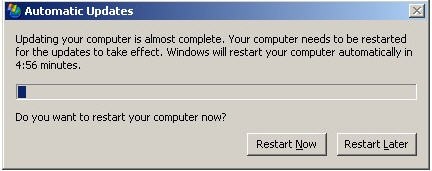
If you choose Restart Later, it waits about 10 minutes and then pops this screen up again. Argggh!
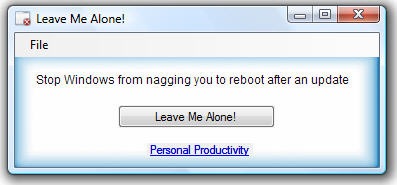
It occurred to me some of you may hate this as much as I do, but you don’t want to go fiddling around in Services.msc or have to memorize “net stop” commands. Worse is the articles that teach you to shut it off permanently. If you shut it off for good, you don’t get updates unless you manually go to Windows Update. In the long run, this can be more painful than rebooting as soon as you see the message.
So to address this problem, I created a simple little app called Leave Me Alone! When you run it and click the “Leave Me Alone” button it temporarily turns off the source of these restart messages. It is certain to boost your productivity when the WU Restart beast comes calling.
I see about 5 advantages to using this software:
-
You can get back to work immediately
-
Does not permanently disable your updates
-
You don’t have to memorize net-stop commands
-
You don’t have to fish around in the system services panel
-
You don’t have to set a system policy
Trivia: I coded Leave Me Alone! in C#. It is my first stand alone C# program. Woot!
Download Leave Me Alone! (Windows XP/Vista)
Want more free software that keeps you more productive? Be sure to subscribe to my software-riffic RSS feed.




{ 20 comments }
Nice idea but the only thing your app do is shutdown the Windows Update service.
Erwin, yes, i had indicated that originally. The point is many people don’t want to have to learn the method of doing that or memorize the shutdown command(s).
This saves a few keystrokes and solves the problem.
Your app killed two birds with one stone. I just installed an update and WU wouldn’t stop nagging me to reboot. Even when I set it for 4 hours it came back every ten minutes. Then I had to leave the room for a while so I took that opportunity to reboot.
When I came back the WU nagger was reminding me that there was an update I hadn’t installed. I chose not to install it. I don’t want to install it, but it wouldn’t stop reminding me.
Your app is intended to stop the reboot message but solves the update waiting issue as well. WONDERFUL.
Question, Your description says it stops reminders “temporarily.”
When do they start again? What starts them?
Thanks again for getting rid of a major annoyance.
Len
Leonard, glad you find it helpful. It only turns off alerts until you reboot.
Cheers!
Those “midnight patches” always seem to happen when I’ve left my Pc running doing something I want to get to straight away in the morning, only to find MS has done an update which means all my browser windows have to reload (and hopefully nothing gets lost).
daves last blog post..Sound Card Driver Download – Get The Sound Card Drivers For Your PC The Easy Way
Yes its pretty annoying when these updates comes up. And what’s worse sometimes when I just kept on pressing “Later” my PC crashes.. hmph..
Thanks a lot. I’m so tired of leaving something running overnight just to come back the next morning and the computer has been restarted.
Thank you for the free software. Accidentally found your website while surfing internet.
This is really usefull software
mails last blog post..Backup Computer Devices Driver
I personally prefer to:
1. Create a notepad file, save it as whateveryouwant.bat
2. Paste the following: net stop “automatic updates”
3. Save, then double-click.
Same thing as your program, but with less clicks
Crana – it is dangerous to totally stop uploads from you pc,
Deepfreeze lets you update as much as needed and once you restart everything goes back to normal.
Wow, I can live with the extra usability (If that’s what Microsoft calls it) that ships with Microsoft products. But it’s the annoyance that I can’t live with. Thanks for the great resource. Found it useful.
Cheers.
Cool! However, it would be more logical to have “LeaveMeAlone!” give the order “Stop Windows from nagging *me* to reboot after an update” instead… ;D
(No, “Pitnicker” is not the sound one might hear after clamping a horse’s muzzle in their axial cavity! XD) )
)
(Well, maybe it is…
Nice little app. You know what, I recently go so nuts, I just went and disabled the automatic updates. Now I just have a schedule that I use to update manually on my own.
lyndseys last blog post..Get the Best Credit Card Rates
It sounds like you’re creating problems yourself by trying to solve this issue instead of looking at why their is a problem in the first place.
Hi there,
This application is great. I kept turning off the automatic restart manually but then would forget and have to look it up again.
I’m still not a big fan of Windows, but at least your application has made it slightly less tiresome to use!
–Peter
you cant just turn off automatic updates! a better option is to only stop the auto restart function; http://lifehacker.com/software/top/get-rid-of-windows-update-restart-nag-183976.php
The netstop commands aren’t too much to memorize but hey that program is a treat, really, it’s soooo nice to be able to kick windows out of your mind by a simple click, really. Those updates messages are quite possibly among the most annoying and upsetting things I know about computers (being a software engineer and a film maker myself…) so congratulations for this brilliant little idea of yours and all the best.
Sweet. I like it. I posted a longer post but your anti-spam blocker ate it
i love this utility for the obvious reason of untimely reboots and also having the reboot now window pop up in front of what you are doing and you click on it..
But this does leave you exposed to whatever vulnerability is being fixed the updates you just installed. As you may or may not know, Microsoft “patch tuesday” is generally followed by “exploit thursday”- as hacker’s reverse engineer the fixes, discover the exploits and then spread them around the net. So delaying updates or reboots exposes you to all this !
This does what Lifehacker pointed out:
Start / Run / gpedit.msc / Local Computer Policy / Computer Configuration / Administrative Templates / Windows Components / Windows Update / Re-prompt for restart with scheduled installations
This is what the Explanation of the service states:
“Specifies the amount of time for Automatic Updates to wait before prompting again with a scheduled restart.
If the status is set to Enabled, a scheduled restart will occur the specified number of minutes after the previous prompt for restart was postponed.
If the status is set to Disabled or Not Configured, the default interval is 10 minutes.
Note: This policy applies only when Automatic Updates is configured to perform scheduled installations of updates. If the “Configure Automatic Updates” policy is disabled, this policy has no effect.”
So the best you can do is to ENABLE the service, and set it to 1440 minutes (24 hours) which is the maximum setting and it will come up only once a day, unless you restarted, which would eliminate it entirely. So worst case, you click on the original popup only once a day and you don’t have to install and run another app that would do the same thing.
{ 32 trackbacks }